How to mount an IMU or INS in any orientation.
URFR Explained with Real World Use Cases
It is not always feasible to install an inertial measurement unit (IMU) or an inertial navigation system (INS) in a predetermined orientation on the platform. When IMU and INS products are designed with fixed orientation standards, such as the X axis directed outward from the connector, it may pose challenges in aligning it along the X axis of the UAV or platform due to spatial constraints. This situation can often lead to frustration.
To address this issue, Aeron’s IMU and INS products provide users with the flexibility to modify the axis conventions during installation on the platform. The feature known as URFR (user reference frame rotation) allows for straight forward system configuration. Let us go through the nimble way to achieve this.
How it works
Select the installation site and the device's orientation. The device may be positioned to align its axis with that of the platform. It is capable of rotating in any direction, but only in increments of 90 degrees.
Subsequently, this orientation must be set in the device using Aeron’s configuration utility, which allows the device to automatically adjust itself according to the updated configuration. This orientation is applied to all output parameters, including Roll, Pitch, Heading, velocities, rates, and acceleration.
Notably, the alteration in orientation does not compromise performance; rather, it serves as an added feature to facilitate the installation of the IMU/INS for user convenience.
Below are several examples of potential configurations across various platforms.
CASE - 1: Aeron's CSTR-IMU1100 installed in a quadcopter
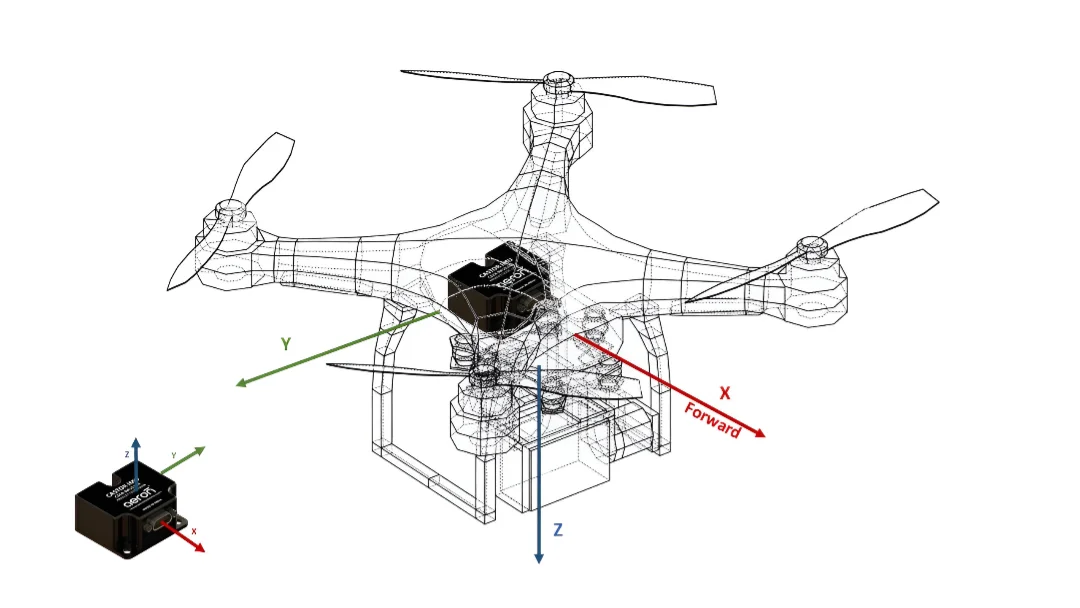
Figure 1: Quadcopter
In the above example, this is the axis combination:
IMU Axis | Platform Axis |
|---|---|
X | X |
Y | -Y |
CASE - 2: Aeron's PLX2-NS10 INS installed in a fixed wing
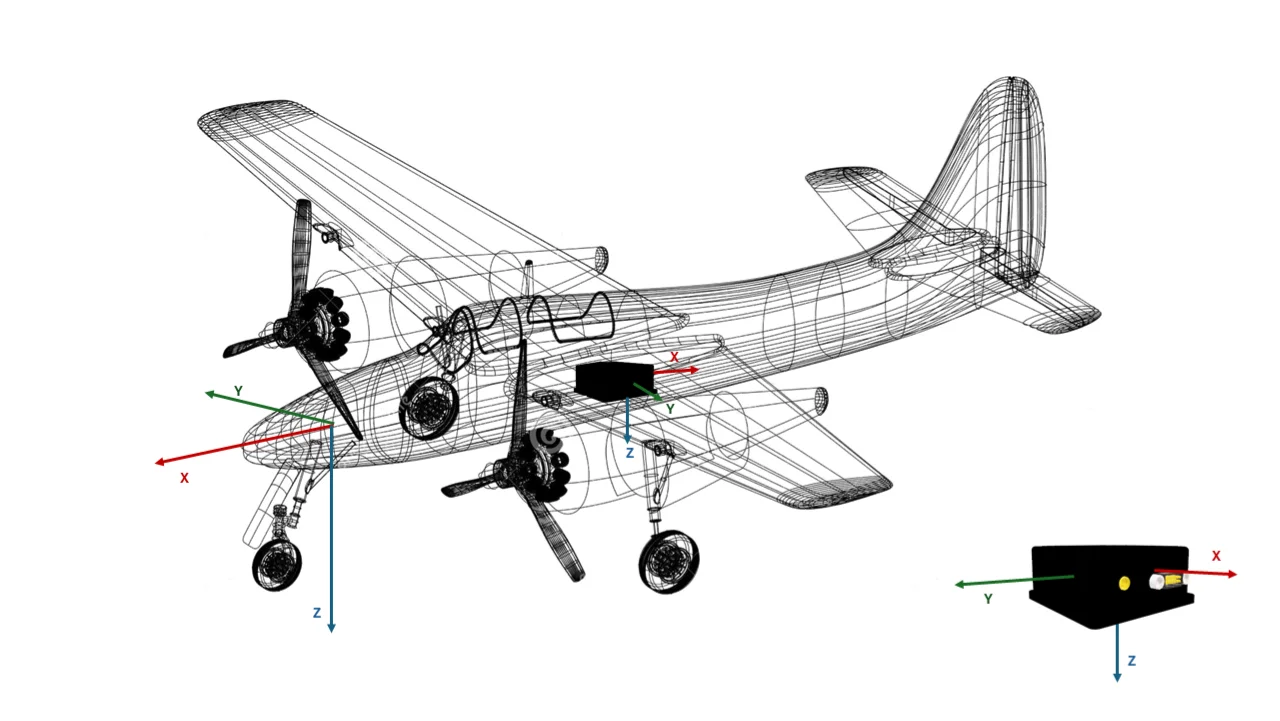
Figure 2: Fixed Wing
In the above example, this is the axis combination:
IMU Axis | Platform Axis |
X | -X |
Y | -Y |
Z | Z |
CASE – 3: Aeron’s OCT3-NS7700T installed in a military truck
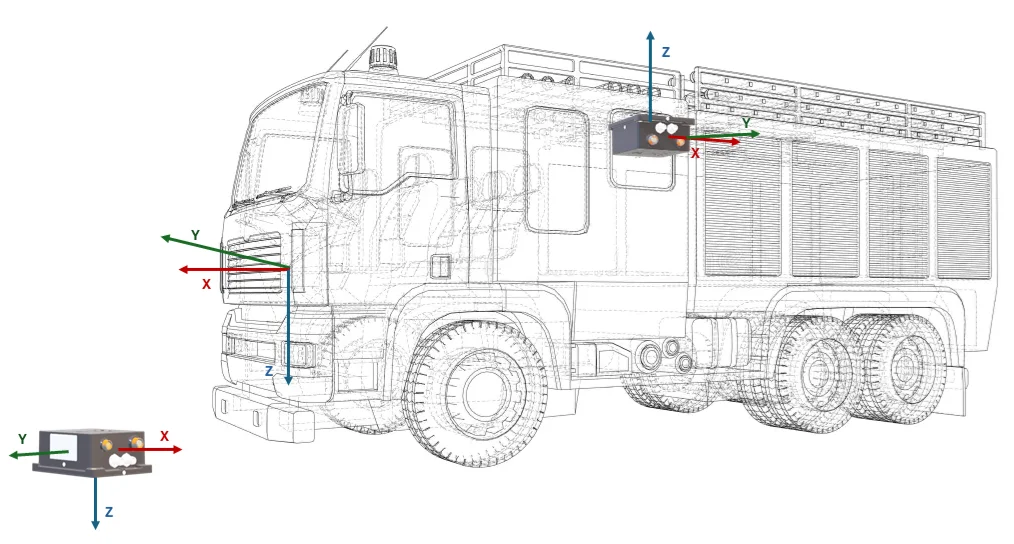
Figure 3 : Vehicle
In the above example, this is the axis combination:
IMU Axis | Platform Axis |
|---|---|
X | -X |
Y | -Y |
Z | -Z |
Configuring it in the user interface
Aeron's desktop utility called Aeron INS Connect Suite (AICS) serves as a tool for configuring various device parameters, including URFR.
The user-friendly interface and graphical representation facilitate the configuration of orientation with minimal confusion.
Below are the steps to configure the device's orientation using the configuration utility.Let us take an example of CASE - 3 from the above section.
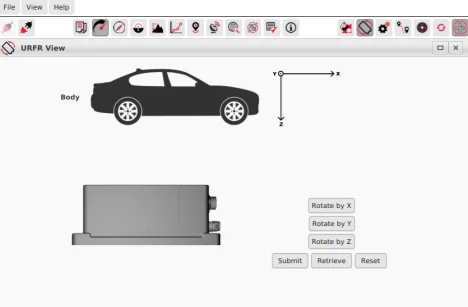
Figure 1: AICS - User Reference Frame Rotation (Default Orientation)
1. Install the device on the platform as per the required orientation.
2. Use the ‘Rotate by’ axis buttons to rotate the image to match the installation orientation. The combination of X, Y and Z can be used to reach the desired orientation.
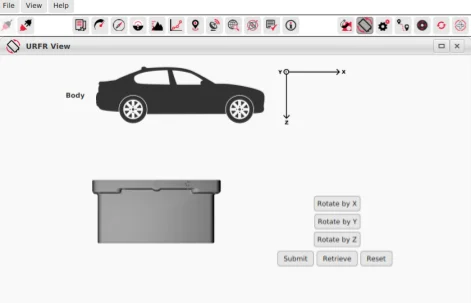
Figure 2: AICS - URFR for Case-3 (Desired Orientation)
3. Click the Submit button once the desired orientation is achieved. This will save the configurations to the device.
Note:
1. The device needs to be restarted after changing the URFR configuration.
2. Magnetometer calibration will not be valid after changing the device orientation. The user needs to perform magnetometer calibration again after changing the device orientation.
3. The URFR works for configurations of 90 degrees angle. For minor corrections, the harmonization feature should be used.
Reach out to our team today to know more about Aeron’s IMU and INS
Author: Bharat Kokate