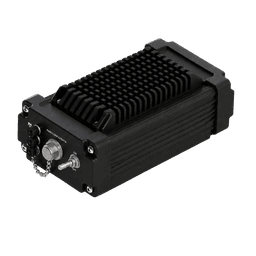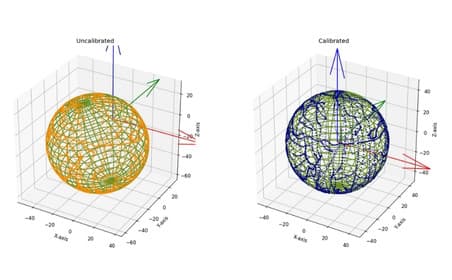
Learn how to calibrate Aeron’s INS magnetometers for accurate magnetic field measurements.
What is a Magnetometer?
A magnetometer is a sensor or device that measures the strength and direction of magnetic fields in the surrounding environment. It is an essential instrument in geology, navigation, archaeology, and space science, helping to detect and analyze magnetic phenomena. Different types of magnetometers are designed to measure a magnetic field's direction, strength, or relative change at a specific location.
How does it work?
A magnetometer works by measuring the strength and direction of a magnetic field. It typically relies on the principle of magnetic induction, where changing magnetic fields induce currents in coils of wire, or on the interaction of magnetic materials with external magnetic fields. A magnetometer detects magnetic field variations using sensors like fluxgate, Hall-effect, or magnetoresistive elements. These sensors produce signals proportional to the magnetic field, which are processed to measure the field's strength and direction.
Magnetometer Direction Estimation
Mounting the INS containing a magnetometer on or nearby objects containing ferromagnetic materials can distort the magnetic field, leading to errors in orientation estimation. To address this, Aeron provides a proprietary software utility that corrects magnetic disturbances of the Aeron’s INS.
Causes of Magnetic Errors
Hard Iron Distortions (Bias): Caused by permanent magnetic fields from magnets or magnetized materials such as :
Magnets
Magnetized metals
High-current wires
Speaker wires
Motors
Soft Iron Distortions: Caused by paramagnetic materials that deflect and distort Earth's magnetic field, including:
Ferrous metals (iron, steel)
Nickel
Carbon fiber
Common Errors in Sensor Alignment:
Axes misalignment
Non-orthogonality due to manufacturing inaccuracies
Calibration Process Overview
To magnetically calibrate the Aeron’s INS, follow the below steps:
1. Precautions
The device should be rotated in a circular motion on a horizontal surface. The inclination angle (Roll/Pitch) of the surface shall be close to zero and shall not be more than ±5 deg.
The area in which calibration is to be performed should be free from magnetic interference.
Avoid mounting the INS close to sharp edges of ferromagnetic materials, as these focus on magnetic distortions.
2. Preparation
Install the INS firmly to prevent movement during calibration.
No specific mounting orientation is required.
3. Data Collection
Rotate the INS through various orientations to capture raw sensor data.
Use Aeron’s utility to record this data.
4. Procedure
Power ON the device.
Run AICS (Aeron’s Utility).
Connect the port of the device to the computer/laptop.
The user can connect the device by using the File menu -> Connect or Toolbar button, as shown in Figure 1: File menu - Connect and Figure 2: Connect - Toolbar Button.
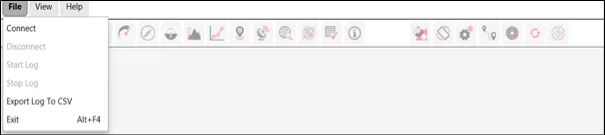
Figure 1: File menu - Connect
OR
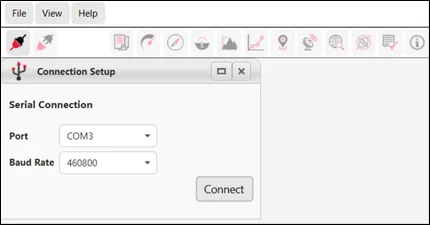
Figure 2: Connect - Toolbar Button
Select the COM port and baud rate from the drop-down list.
Click Connect.
Click the Configuration icon from the toolbar and select the Magnetometer settings tab, a window will appear as shown in Figure 3.
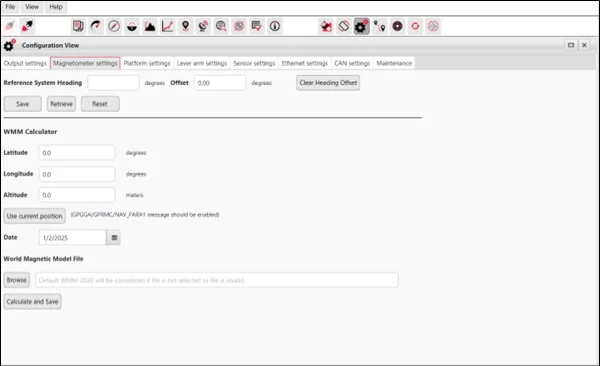
Figure 3: Magnetic Calibration - Magnetometer Settings
Enter the Reference System Heading value. The offset value is displayed by calculating the difference between the device and reference system heading values. Click Save to apply the settings.
Enter the position data (latitude, longitude) of the magnetic calibration site for WMM.
OR
If GNSS FIX is available, click ‘Use current position’.
Select the current date.
Select the latest WMM.COF file OR skip to use the inbuilt WMM file.
Now click Calculate > Save to save all the above settings.
The device is now ready to start calibration.
Click the (
) magnetic settings icon available on the toolbar.
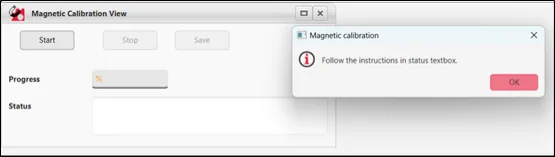
Figure 4: Magnetic Calibration – Step 1
Click the Start button to initiate the magnetic calibration process. Follow the instructions that appear in the status textbox as shown in Figure 4.
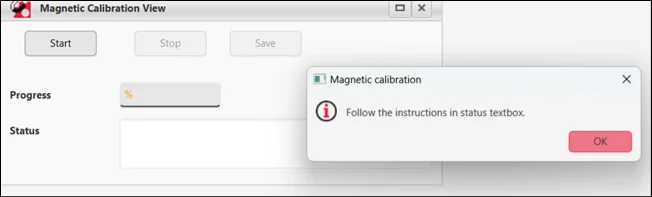
Figure 5: Magnetic Calibration - Step 2 - Start Process
Rotate the device (or the platform on which it is fitted) slowly and observe the calibration process in the “Status” bar. Check the ‘Progress’ percentage while performing the activity. Read the status messages carefully.
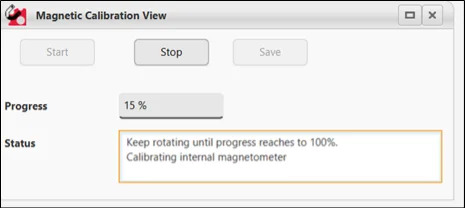
Figure 6: Magnetic Calibration - Step 3 - In Progress 15% (a)
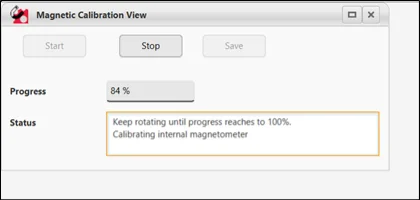
Figure 7: Magnetic Calibration - Step 3 - In Progress 84% (b)
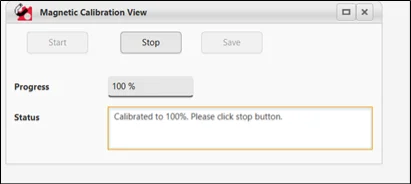
Figure 8: Magnetic Calibration - Step 4 - Process Complete 100%
Once the progress reaches 100%, the magnetic calibration process is successfully completed and data required for calibration is collected.
Click Stop > Save to save the calibration.
The device will now switch to navigation mode.
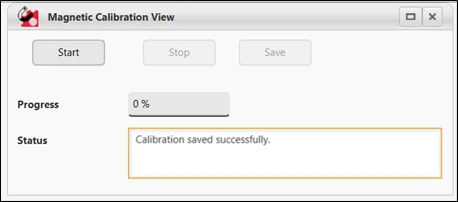
Figure 9: Magnetic Calibration Saved Successfully
After calibration is completed, check for any offset between the reference system and the device.
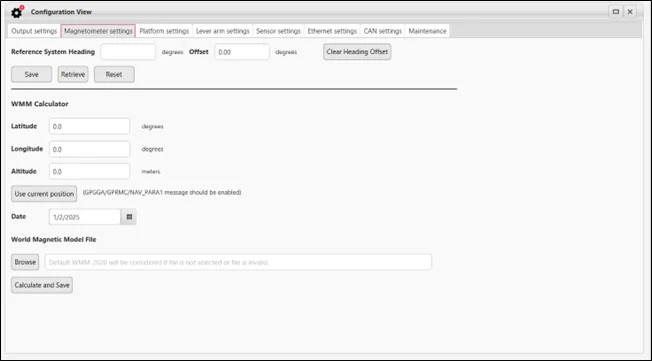
Figure 10: Magnetic Calibration - Offset
Click the Save button.
Calibration is now completed.
When the above steps are followed sequentially, the magnetic calibration is completed successfully.
5. Recalibration
Required if the mounting position or the object’s geometry changes significantly.
Necessary to maintain accuracy over time or after modifications.
6. Additional Features & Notes
Environmental Variability: The Earth's magnetic field varies geographically and temporally.
Magnetic Model Integration: Aeron’s utility incorporates the latest World Magnetic Model (WMM) to update magnetic data based on location (latitude, longitude, altitude) and current UTC.
Location & Time Input: This can be manually entered or automatically acquired via GNSS.
Offset Correction: Local magnetic declination may cause yaw offsets of several degrees, which can be corrected during calibration.
Graphs & Data Visualization
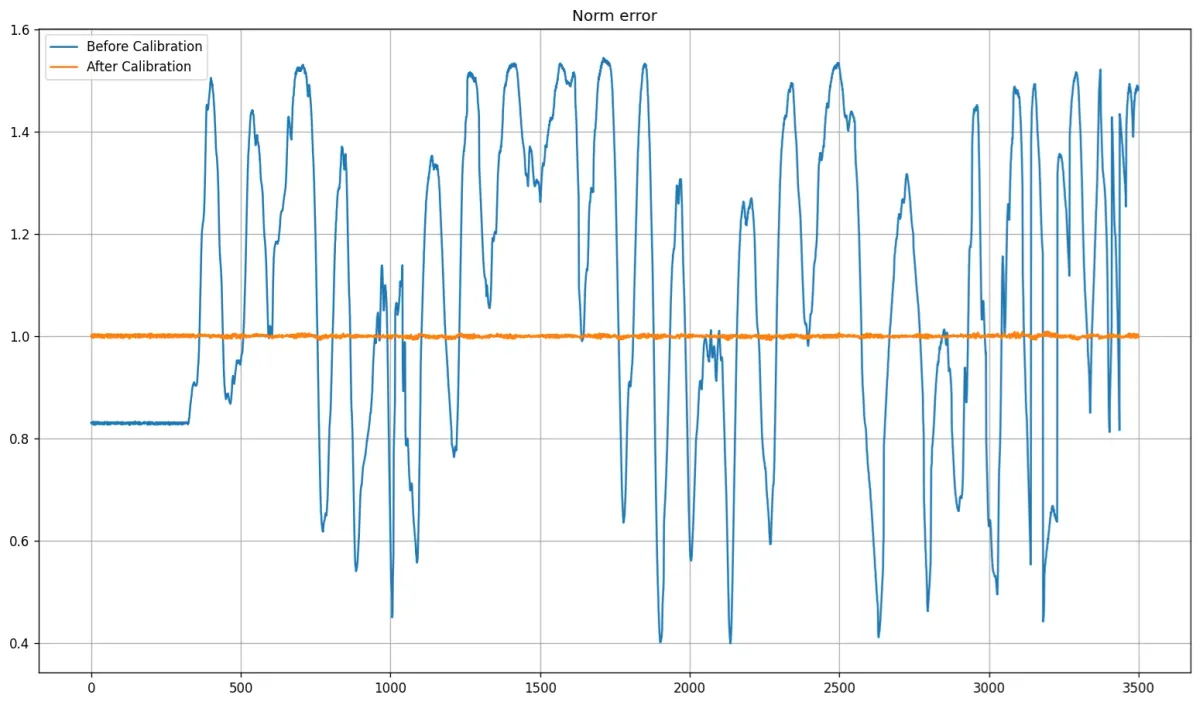
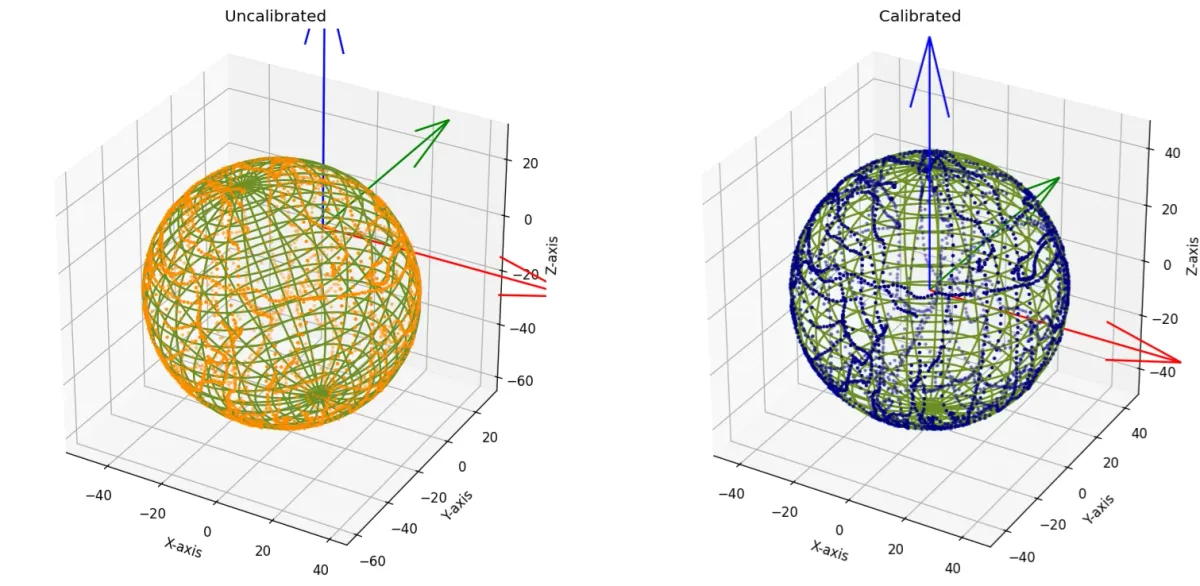
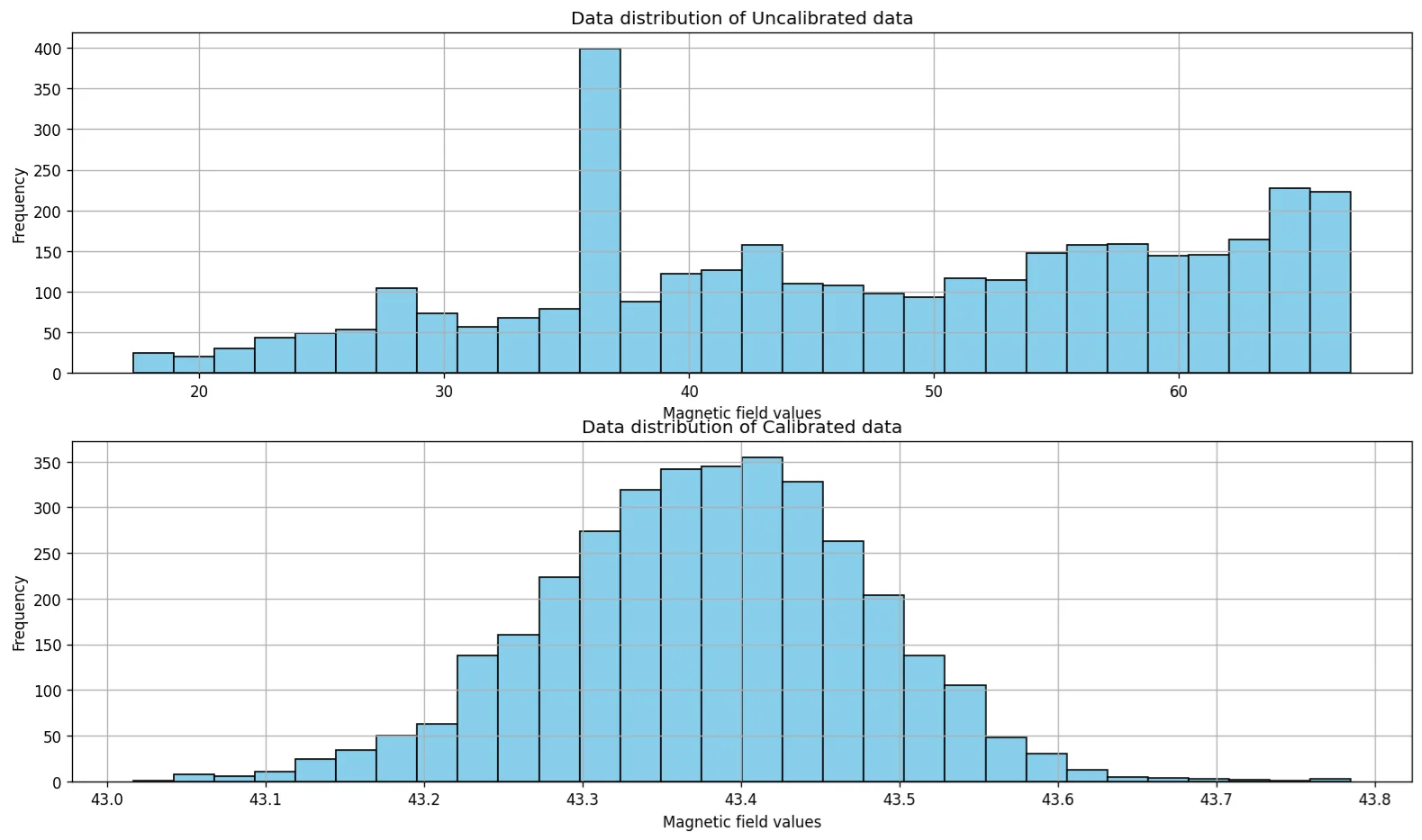
Calibration results are visualized through graphs before and after calibration, demonstrating the effectiveness of the process across various categories (e.g., 3D calibration).
Note: Proper calibration ensures the INS maintains high accuracy and helps to operate in environments free of ferromagnetic interference. Regular calibration is recommended if the mounting setup or surrounding environment changes.
Reach out to our team today to know more about Aeron’s IMU and INS solutions.
Author: Harsh Shah | Asst. Manager, Pre-Sales & Support